


Introduction
You can connect Claude to WordPress in about two minutes using an MCP server, and from that point Claude stops handing you text to paste and starts running the operation itself. Three routes work in 2026: a managed MCP server such as InstaWP’s InstaMCP, the official WordPress MCP Adapter on a self-hosted install, and the read-only WordPress.com connector. This guide walks all three, with the exact screens, the permission model behind each one, and the failure cases nobody mentions until you hit them.
Key takeaways
- InstaMCP is the fastest route to connect Claude to WordPress. Flip one toggle in the InstaWP dashboard and the site exposes 43 typed WordPress tools to Claude, with no server to run.
- Every serious method separates two gates: whether MCP is on, and whether the dangerous tools are on. execute_php, db_query and site_files ship disabled in InstaMCP for exactly this reason.
- Agencies should look at the account-level MCP rather than adding forty connectors. One OAuth connection covers a whole team of sites.
What WordPress MCP actually is
The Model Context Protocol is an open standard from Anthropic that lets an AI client discover the tools a server offers and then call them. Nothing about it is WordPress specific. It is a wire format for “here is a function, here are its arguments, here is what it returned.”
What makes it interesting for WordPress is the shape of the tools. A well-built WordPress MCP server does not hand Claude a shell. It hands Claude a typed list: create_content, list_terms, media_upload, plugin_operations. When Claude asks to update a post, the server updates a post. It cannot quietly do something else, because there is no other verb available to it.
That distinction matters more than the setup time. Compare the two workflows:
| Without MCP | With MCP | |
|---|---|---|
| Where the work happens | Chat window, then wp-admin | Chat window only |
| How content moves | Copy, paste, reformat | Written directly through a tool call |
| What the AI can see | Whatever you pasted | Live site state, queried on demand |
| What the AI can break | Nothing, and it can also fix nothing | Exactly the operations you enabled |
| Audit trail | None | Tool call, arguments, and WordPress revisions |
For a solo blogger the saving is convenience. For anyone running client sites at scale, it is the difference between a content assistant and something that can actually do the maintenance work.
The 2026 timeline, because half the guides are stale
Three things happened in quick succession, and a lot of published advice predates them:
- December 2, 2025. WordPress 6.9 shipped with the Abilities API in core, including three default core abilities. This is the registry an ability declares itself into.
- February 4, 2026. The WordPress team published the MCP Adapter, which exposes registered abilities over MCP.
- June 23, 2026. WooCommerce 10.9 shipped seven canonical domain abilities through that adapter, so store data became queryable by any MCP client.
One casualty: the older Automattic/wordpress-mcp plugin is deprecated in favour of `WordPress/mcp-adapter`. If a tutorial tells you to install the Automattic plugin, it was written for a version of this ecosystem that no longer exists. Start on the official adapter or a managed server.
The three methods compared
| Method | Best for | Setup time | Access | Claude Code | Where it runs |
|---|---|---|---|---|---|
| InstaWP InstaMCP | Agencies, staging work, multi-site management | About 2 minutes | Read and write, 43 typed tools | Yes, native HTTP | InstaWP managed hosting |
| WordPress MCP Adapter | Self-hosted sites, custom abilities, full control | 15 to 30 minutes | Read and write, whatever you register | Yes, STDIO via WP-CLI | Your own server |
| WordPress.com connector | Analytics and content audits on WordPress.com | About 2 minutes | Read only | No, Desktop and web only | WordPress.com |
Method 1: Connect Claude to WordPress Using InstaMCP
The easiest way to connect Claude to WordPress is to start with InstaWP, where you get access to a fully managed WordPress MCP server called InstaMCP.
InstaMCP lets you connect your WordPress sites with supported AI clients, including Claude, so the AI can interact with your site and perform WordPress tasks instead of simply giving you instructions to follow manually.
Because MCP is built directly into the InstaWP platform, most of the technical setup is handled for you. When you enable InstaMCP for a site, InstaWP installs the required plugin, generates the authentication token, and activates the MCP endpoint.
You do not need to run or monitor a separate Node.js process, manually configure an MCP server, or keep configuration files in sync. Once enabled, you can connect Claude using the generated MCP credentials and start working with your WordPress site through natural-language prompts.
What you actually get
| Category | Tools | What it covers |
|---|---|---|
| Content | 9 | Posts, pages, any custom post type: list, read, create, update, patch, delete, lookup by slug or URL |
| Taxonomies | 9 | Categories, tags, custom taxonomies, term assignment |
| Blocks | 2 | Discover registered blocks and validate block markup before saving |
| Meta | 2 | Read and write post meta, including SEO plugin fields |
| Plugins | 3 | Inventory, file inspection, install and activate operations |
| Themes | 3 | Same, for themes |
| Media | 3 | Upload, attach, edit metadata |
| Diagnostics | 1 | Error logs and site health |
| Skills | 4 | Store reusable playbooks on the site itself |
| Memory | 4 | Persist project context between conversations |
| Capabilities | 3 | The gated power tools, off by default |
The Blocks pair is the one developers tend to appreciate after the fact. validate_blocks checks Gutenberg markup before it is written, which is what stops an agent from silently corrupting a page into the block recovery screen.
Skills and Memory are the sleeper features. A skill is a Markdown playbook stored on the site, so “build a landing page the way we build landing pages” survives past the end of the chat. Memory keeps project facts around between sessions. Neither exists in the adapter route unless you build it.
Here is how you can connect Claude to your WordPress site with InstaMCP.
Step 1: Create the site
Sign in to InstaWP and click Create New Site. You can start with a fresh WordPress installation, a snapshot, a template, or an AI-generated site. Choose your WordPress version, PHP version, and server region, then launch the site.
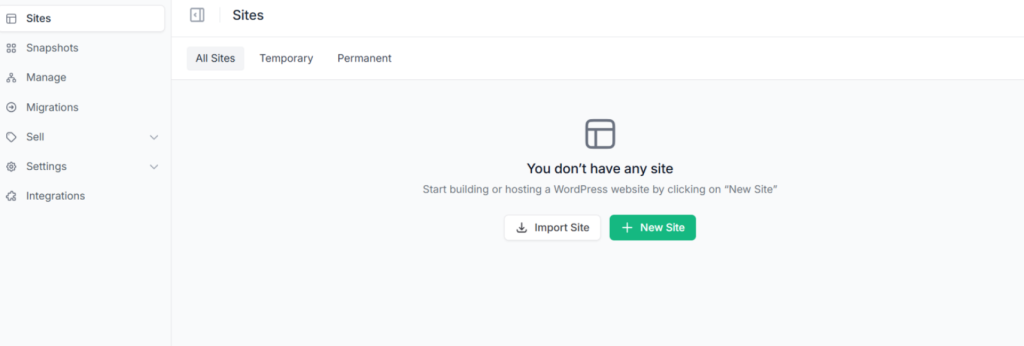
Creating the site on InstaWP is important because InstaMCP is built into the InstaWP environment. Once your site is running there, you can enable the managed MCP server directly from the platform and connect it with Claude without setting up your own MCP infrastructure.
Already have a WordPress site hosted elsewhere? You can migrate it to InstaWP for free and create a clone of the site on InstaWP. The cloned site gives you a safe environment where you can use InstaMCP with Claude to make and test changes without touching the live site.
Once the changes are ready, you can sync or push them back to the live site using InstaWP’s staging-to-production workflow.
InstaWP uses pay-as-you-go managed hosting, so you can create a temporary environment for development and MCP-powered workflows without first committing to a traditional long-term hosting plan.
Must Read: Create Site
Step 2: Enable MCP on the site
Open the site, then find MCP in the left sidebar of Site Details. Flip Enable MCP. Three things happen without further input: the InstaMCP plugin is installed and activated, a 64 character token is generated, and the endpoint goes live.
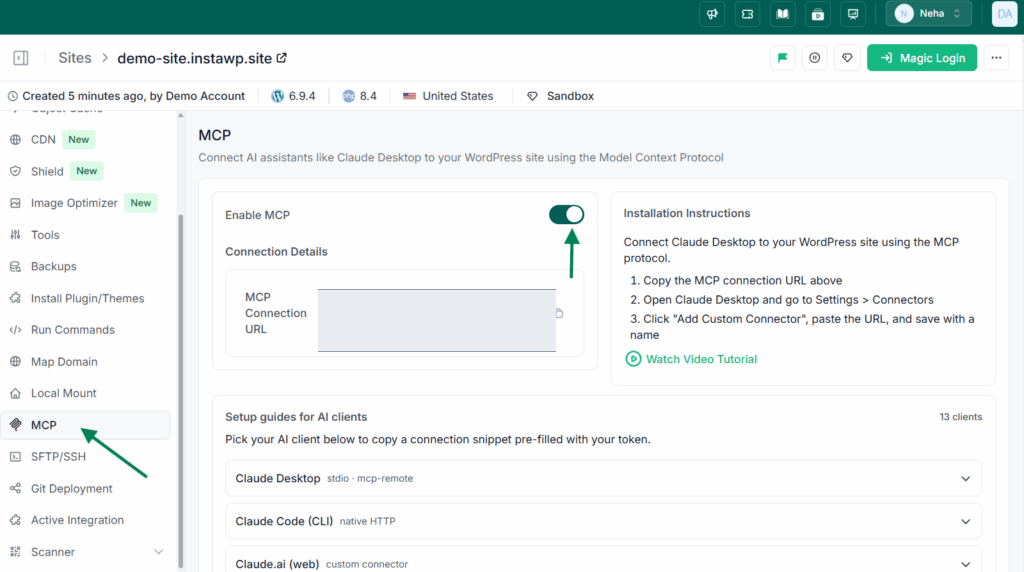
Step 3: Copy the connection URL
The URL that appears is the endpoint plus your token as a query parameter. Copy it with the button rather than selecting by hand, because a truncated token produces an authentication error that looks like a server fault.
Treat that URL as a credential. It grants whatever the token’s scope allows, it does not expire on its own, and it should never end up in a support ticket, a shared document or a Slack channel. If it leaks, disable and re-enable MCP on the site to rotate it.
Step 4: Connect your AI client
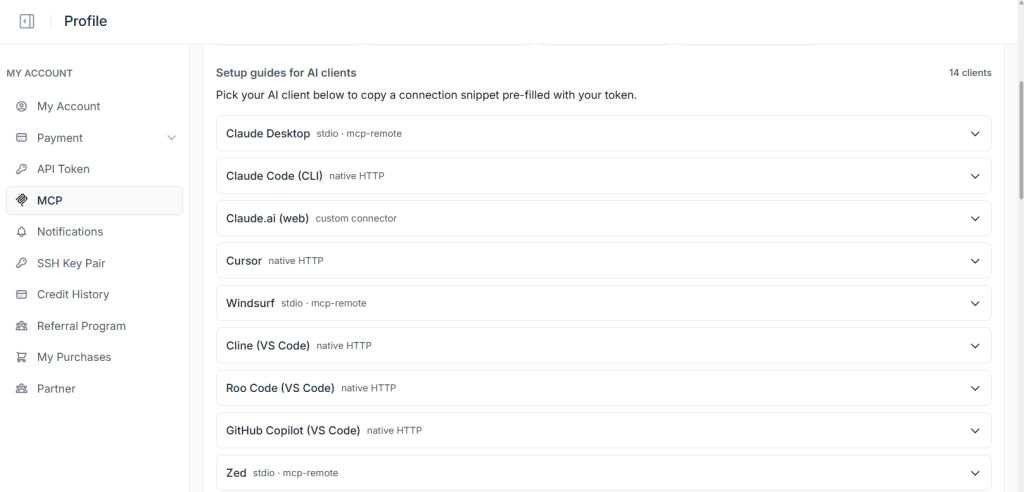
The same screen lists setup guides for 14 clients, each one prefilled with your token. Claude Desktop connects over stdio through mcp-remote, Claude Code and Cursor connect over native HTTP, and Claude.ai takes it as a custom connector.
For Claude Desktop, open Settings, then Connectors, then Add Custom Connector, paste the URL and give it a name you will recognise later. Naming matters once you have several: “Acme staging” beats “wordpress-2”.
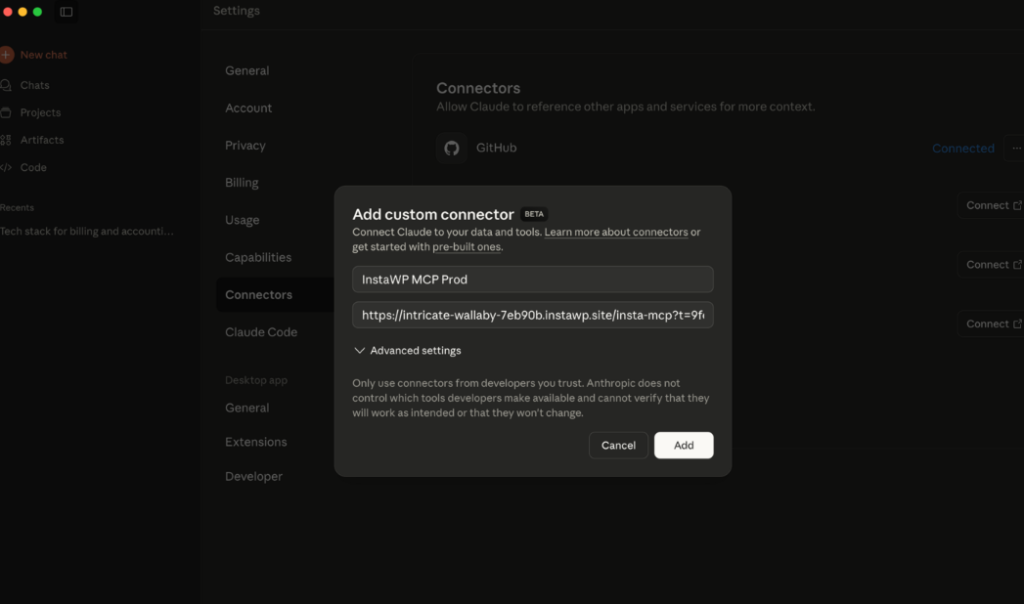
For Claude Code, add your InstaWP site as an MCP connection by running:
claude mcp add --transport http mymcp <mcp_url>Replace <mcp_url> with the MCP connection URL copied from your InstaWP dashboard. Claude Code will verify the MCP endpoint and confirm that the connection has been added successfully.
Step 5: Confirm it works
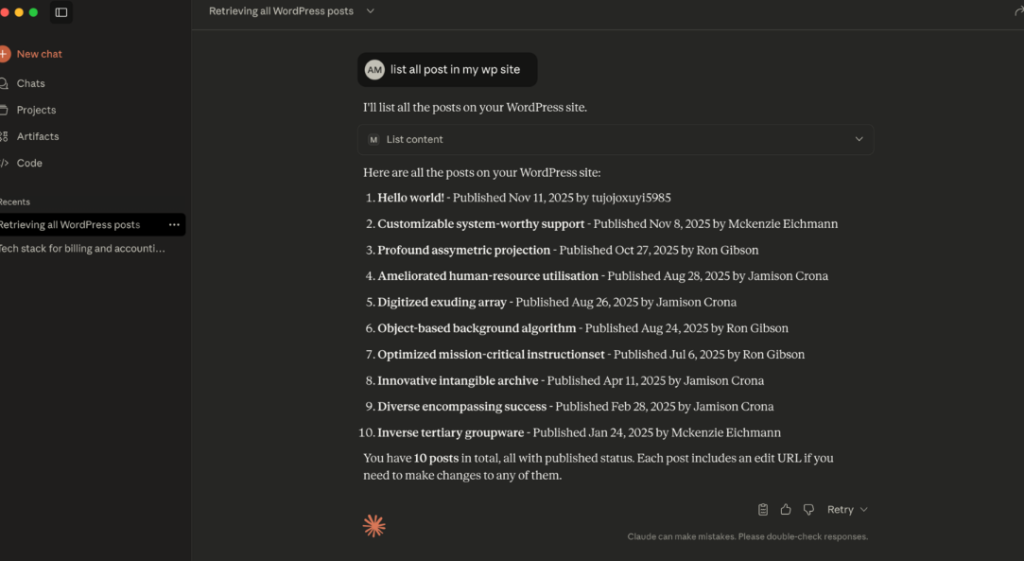
Start a conversation and ask for something read-only first:
- “Can you access my WordPress site?”
- “What posts are on my website?”
- “Tell me about my site structure”
You should the response. If you get an apology and a suggestion to check the site manually, the client has not loaded the server, and the troubleshooting section below covers why.
The two gates, which is the part worth understanding
InstaMCP separates “MCP is on” from “the dangerous tools are on”, and the first gate never opens the second. Three tools stay disabled until a site administrator turns them on inside WordPress: execute_php, db_query and site_files.
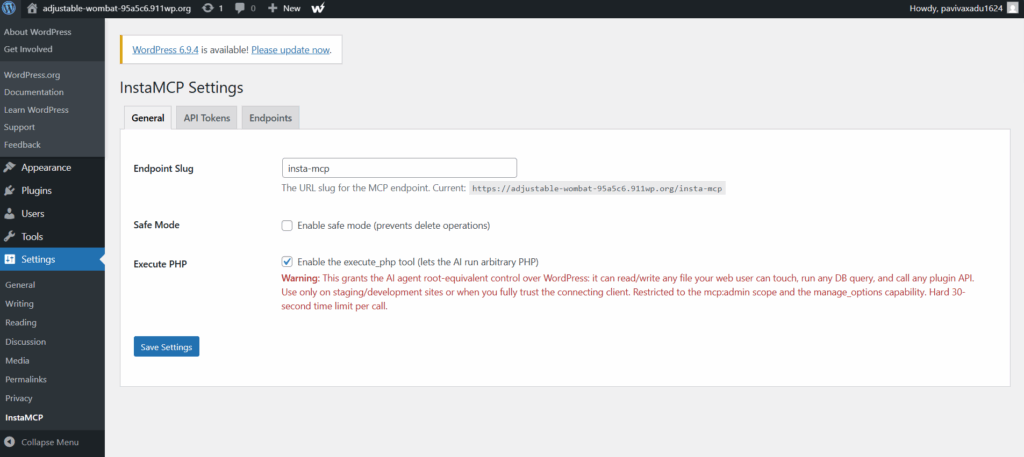
Reading that screen top to bottom tells you most of what you need to know:
- Endpoint slug is configurable. The default is insta-mcp, and changing it changes the connection URL.
- Safe Mode prevents delete operations outright. On a client site, leave it on.
- Execute PHP grants root-equivalent control over WordPress and says so in red. It additionally requires the mcp:admin token scope and the manage_options capability, and every call is capped at 30 seconds.
When execute_php is off it is not advertised in the tool list at all, so a connected agent does not know it exists and will not try to use it. If you do call it while disabled you get Forbidden: execute_php is disabled, which is the system working rather than a bug to report.
On top of that, tokens carry WordPress role scopes: mcp:read, mcp:write, mcp:delete and mcp:admin. A content token has no business holding mcp:admin.
The agency problem, and the account-level answer
Per-site connections are fine at five sites. At forty they are unworkable, because every client would be a separate connector in Claude with a separate token to track.
That is what the account-level MCP solves. It lives in your InstaWP profile rather than on a site, it authenticates over OAuth instead of an embedded token, and it covers your current team.
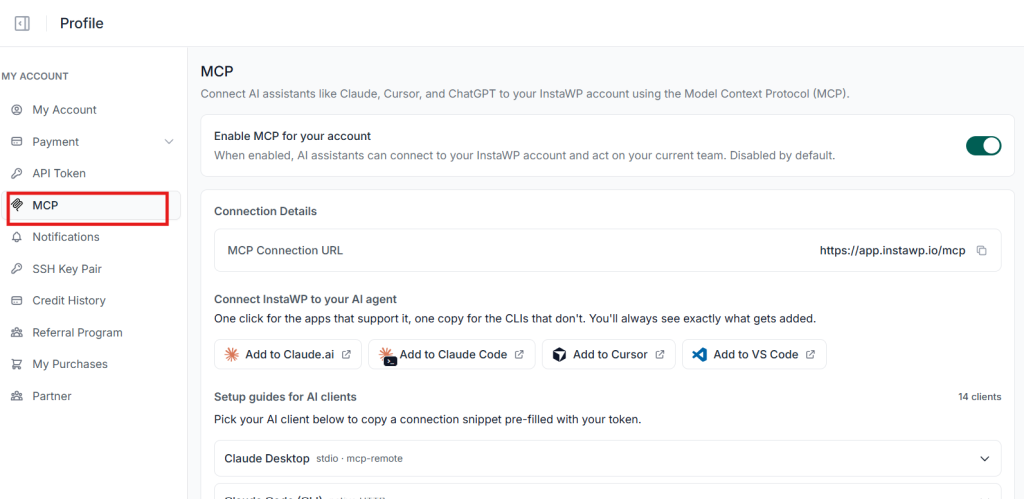
The clean way to think about the two layers: the account MCP manages your hosting, and the site MCP manages what is inside a site. The account server handles sites, PHP and WordPress versions, backups, teams, diagnostics and billing. It cannot rewrite a post. The site server rewrites posts and cannot provision a site. Neither does the other’s job.
Permissions work differently at each layer too, and deliberately so. The account server is restricted per capability, with a Read-only mode master switch above everything else.
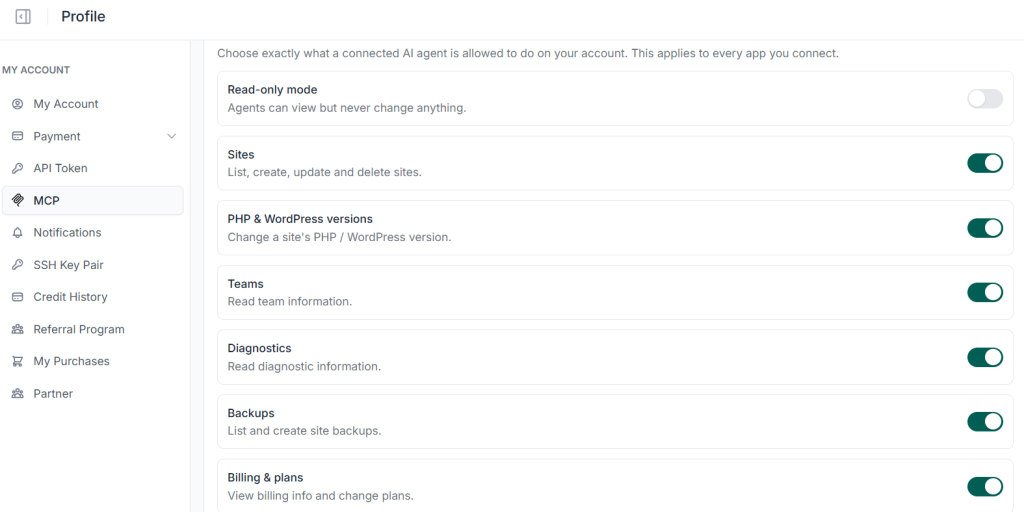
The sensitive group sits below the everyday toggles: credentials and secrets, shell and WP-CLI, and “act inside sites”. That last one is the bridge between layers. Switch it on and the account server can proxy into each site’s MCP, which is the real answer to “do I need forty connections for forty sites.”
The account server also ships setup guides for 14 clients, two more than the site-level list.
Method 2: The official WordPress MCP Adapter
The MCP Adapter is maintained by the WordPress project. It does one job: take abilities registered through the core Abilities API and expose them as MCP tools.
The mental model is different from a managed server. There is no fixed tool list. There is a registry, and whatever is in it becomes available. Core registers a few abilities, WooCommerce 10.9 registers seven, your plugin can register its own, and the adapter publishes the result.
Requirements
- WordPress 6.9 or later, so the Abilities API is in core. It technically runs from 6.7 with the standalone abilities plugin, but there is little reason to now.
- WP-CLI, for the stdio transport.
- Node.js 20 or later, for the HTTP transport.
- Claude Desktop 0.9.2 or later, or Claude Code.
- Application passwords enabled, which they are by default over HTTPS.
Install the plugin
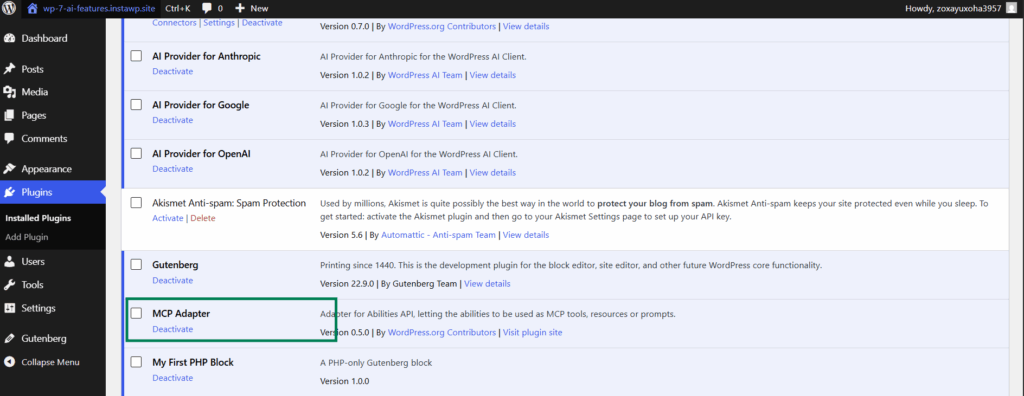
Install and activate the adapter from the repository. It appears in your plugin list like any other.
Local development: stdio transport
For a local install this is the least work. WP-CLI runs the server as a subprocess and Claude talks to it over stdin and stdout, so nothing is exposed to the network.
Add this to claude_desktop_config.json:
{
  "mcpServers": {
    "my-wp-site": {
      "command": "wp",
      "args": [
        "--path=/path/to/your/wordpress",
        "mcp-adapter",
        "serve",
        "--server=default",
        "--user=admin"
      ]
    }
  }
}
Restart Claude Desktop afterwards. It reads that file once at launch and will not pick up changes while running.
Two things catch people here. The wp in command must be a binary Claude Desktop can resolve, and a GUI application does not inherit your shell PATH, so an absolute path such as /usr/local/bin/wp is safer. The –user flag decides which WordPress user the calls run as, and its capabilities cap everything the agent can do. Pointing it at an administrator by reflex gives away more than you meant to.
Remote sites: HTTP transport
For a site you cannot reach over stdio, create an application password under Users, then Profile, then Application Passwords, and run the Node proxy against your site’s MCP endpoint.
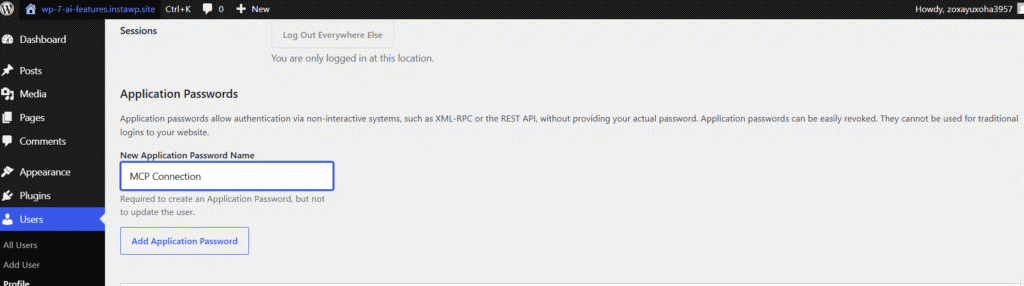
Name it for its purpose. “MCP Connection” tells you what breaks when you revoke it. “test” does not. Application passwords are scoped to REST and XML-RPC and can be revoked individually, which is why they are the right credential here rather than your login.
Claude Code
Claude Code speaks MCP natively, so you can register the server from the terminal:
claude mcp add my-wp-site -- wp --path=/path/to/wordpress mcp-adapter serve --server=default --user=admin
This is the strongest argument for the adapter route if you are already working in a repository. The same session that edits your theme can query the site the theme runs on.
The limitation people discover late
Abilities are not exposed to MCP automatically. Each one has to be flagged for MCP access, so a freshly installed adapter on a stock site presents a very short tool list, and the usual reaction is that something is broken. It is not. There is simply nothing registered yet. That is the design: opt in per ability, not blanket exposure.
Budget real time for this. Fifteen to thirty minutes covers installation, and rather more covers deciding what to expose and writing abilities for anything custom.
Best for: developers on self-hosted WordPress who want the standards-track route, custom abilities around their own plugin logic, and no third-party infrastructure in the path.
Method 3: The WordPress.com Claude connector
In February 2026 WordPress.com shipped a first-party Claude connector, available from Claude’s connector directory. It gives Claude read-only access to your site data over OAuth 2.1.
What it does well:
- Summarises traffic and reader engagement.
- Finds stale, unpublished or orphaned content.
- Flags broken links and internal linking gaps.
- Audits posts for SEO problems.
- Reads your writing patterns and suggests topics from them.
Setup is genuinely two minutes. Open Claude, go to Settings, then Connectors, then Browse Connectors, search for WordPress.com, click the plus, sign in and approve access.
The limits are the point, though. It cannot create, edit or delete anything. It only covers WordPress.com hosted sites, not self-hosted installs. It needs a paid plan with MCP access. And it does not work with Claude Code, only Claude Desktop and the web app.
Best for: WordPress.com users who want an analyst, not an operator.
Which method fits your setup
| Your situation | Use |
|---|---|
| Self-hosted, want the official path, comfortable with WP-CLI | MCP Adapter |
| Need custom abilities around your own plugin | MCP Adapter |
| Managing client sites, want it working today | InstaMCP |
| Need a throwaway environment to test agent workflows | InstaMCP sandbox |
| More than about ten sites under management | InstaWP account-level MCP |
| On WordPress.com, want analytics only | WordPress.com connector |
| Cannot move hosts and cannot run Node | Reconsider, or move a staging copy |
There is a reasonable hybrid worth naming: run the adapter on production where you control everything, and keep an InstaWP sandbox for the experiments you would not run against a client. Testing an agent workflow on a disposable copy first is the same instinct behind a proper WordPress staging environment, applied to a new class of risk.
Real workflows, with the prompts
Connected, the abstract capability turns into specific jobs. These are the ones that keep coming up.
| Job | Prompt | What comes back |
|---|---|---|
| Client onboarding | “Create pages Home, About, Services, Contact, Blog. Add categories News, Tutorials, Case Studies. Draft a welcome post.” | Site skeleton in one pass, drafts not published |
| Editorial batch | “Create 8 draft posts from these titles for March, category Seasonal, tag spring-2026, scheduled Mondays and Thursdays.” | Eight scheduled drafts with taxonomy applied |
| Content triage | “List every post in Uncategorized and suggest a category from the title.” | A mapping table you approve before it runs |
| Plugin audit | “List active plugins with versions. Flag anything not updated in 12 months or removed from the repository.” | The maintenance report you were going to compile by hand |
| Bulk deactivation | “Deactivate all plugins except WooCommerce, Yoast and Wordfence.” | Confirmation per plugin |
| Team setup | “Create editor accounts for these five addresses.” | Five users, roles assigned |
| SEO sweep | “Review published posts from the last 6 months. Flag titles under 40 characters or missing featured images.” | A prioritised fix list |
Two of these deserve a closer look, because the interesting part is what happens between the prompt and the result.
A plugin audit, step by step
Ask for the audit and the agent calls plugin_info to inventory what is installed, reads version numbers off each entry, and then needs external context to judge staleness. That last step is the one to watch: the agent knows what your site has, not what the plugin repository currently says. Ask it to state its source when it flags something as abandoned, or you get confident guesses about plugins it half remembers.
This pairs naturally with a scheduled update and safety routine rather than replacing it. The agent produces the list. You still decide what gets updated on a live store.
A content refresh, step by step
“Refresh the 2024 posts about staging” is where typed tools earn their keep. The agent calls list_content with a date filter, get_content on each result, rewrites, then calls validate_blocks before update_content. If the rewritten markup is malformed, validation fails and the post is left alone rather than saved broken.
Ask for drafts. patch_content can set status, and a revision is written either way, so recovery is possible, but reviewing a draft is faster than reverting a live page.
Agencies running this pattern across a portfolio are effectively doing AI-assisted WordPress development at production scale, and the same workflow underpins a lot of upsell conversations about ongoing maintenance retainers.
Security: how to hand an agent your site without regret
Most of the risk here is ordinary access control wearing a new hat.
- Scope the token to the job. A content workflow needs mcp:read and mcp:write. It does not need mcp:delete or mcp:admin. On the adapter route the equivalent is the –user flag, and pointing it at an editor rather than an administrator costs nothing.
- Leave Safe Mode on for client sites. Blocking deletes removes the single worst outcome, and almost no legitimate workflow needs a delete.
- Keep `execute_php` off unless you are actively using it. It is root-equivalent. Enable it on a staging copy, do the work, turn it off. The 30-second cap limits runaway execution, not blast radius.
- Test against a disposable site first. This is the strongest argument for a sandbox. Running an untested agent workflow against a live client site to see what it does will eventually cost you a rollback and an awkward email.
- Ask for drafts, review before publish. WordPress revisions and Trash are your undo, and both work better when the change never went live.
- Rotate credentials on a schedule. Application passwords revoke individually. A site MCP token rotates by disabling and re-enabling MCP.
- Never paste a connection URL anywhere shared. The token is embedded in it. This is the most common real-world leak.
One clarification, because it comes up in every client conversation: your credentials authenticate between the MCP server and WordPress. They are not sent to Anthropic. Content passes through the conversation as context, under whatever data policy your Claude plan carries, which is worth reading if you handle anything regulated.
Standard hygiene still applies underneath all of this. An agent with write access to a site running nulled plugins is not the problem on that site.
Troubleshooting the errors you will actually hit
The client shows no tools. Restart it. Claude Desktop reads its config at launch, and Claude Code reads .mcp.json when the session starts. This is the cause about half the time.
Authentication fails on a URL you just copied. The token was truncated. Copy with the button rather than a manual selection.
`Forbidden: execute_php is disabled`. Working as designed. Enable it under Settings, InstaMCP, Capabilities, and only if you actually need it.
The adapter is installed but almost no tools appear. Abilities have to be flagged for MCP access individually, so a stock install has almost nothing registered yet. Check the ability registry before assuming the adapter failed.
`wp: command not found` on Claude Desktop. A GUI app does not inherit your shell PATH. Use the absolute path to the WP-CLI binary.
Writes succeed but the page renders wrong. Block markup was invalid. Validate before writing, and check whether the content went through validate_blocks at all.
Everything works locally and nothing works remotely. Stdio needs local process access. A remote site needs the HTTP transport and an application password, which is a different setup rather than a fix to the first one.
What is coming next
The Abilities API is already in core as of 6.9, and the adapter is published, so the foundation is laid rather than pending. What is still moving:
- WooCommerce shipped domain abilities in 10.9, and other major plugins are expected to follow. Store operations through MCP are the obvious next wave, particularly for anyone running managed WooCommerce hosting.
- Write capabilities for the WordPress.com connector are widely expected and not yet shipped.
- Automattic has been working on a Claude-facing tool for generating block themes from conversation. Treat specifics as unconfirmed until it is publicly documented.
- Deeper AI infrastructure in WordPress core beyond the Abilities API is discussed but not scheduled. Be sceptical of any roadmap claim about version 7.0 that does not cite a core ticket.
Frequently asked questions
Which method should I choose?
On WordPress.com and only need analysis, use the connector. Self-hosted and comfortable with WP-CLI, use the MCP Adapter. Managing client sites and want it working in the next five minutes, use InstaWP’s managed MCP server.
Does this work with Claude Code or only Claude Desktop?
Both the MCP Adapter and InstaMCP work with Claude Code. The adapter registers over stdio through WP-CLI, InstaMCP over native HTTP. The WordPress.com connector is Desktop and web only.
How many WordPress operations can Claude actually perform?
With InstaMCP, 43 typed tools covering content, taxonomies, blocks, meta, plugins, themes, media and diagnostics, plus three gated capabilities that stay off by default. With the adapter, whatever abilities are registered and flagged, which starts small and grows as you or your plugins add them.
Does it work with tools other than Claude?
Yes. MCP is an open protocol. InstaMCP publishes setup guides for 13 clients at site level and 14 at account level, including Cursor, Windsurf, Cline, Roo Code, GitHub Copilot, Zed and the Gemini and Codex CLIs. The WordPress.com connector is Claude-specific.
Is my data shared with Anthropic?
Your credentials authenticate between the MCP server and your WordPress site, not with Anthropic. Content passes through the conversation as context and is handled under your Claude plan’s data policy.
Can I connect multiple WordPress sites to one Claude session?
Yes. Add each as its own connector, or list several servers in .mcp.json, then name them in the prompt: “list posts on client-alpha”. Past roughly ten sites, switch to InstaWP’s account-level MCP so one OAuth connection covers the whole team.
What happens if Claude does something I did not intend?
Layered answers. Safe Mode blocks deletes. Role-scoped tokens cap what is reachable. WordPress revisions and Trash cover content mistakes. On a sandbox you can reset the site outright. On a production site, a recent backup is the real answer, which is why testing on a disposable copy first matters.
What is the difference between the MCP Adapter and InstaWP’s MCP server?
The adapter is an official plugin running on infrastructure you manage, exposing abilities you register. InstaMCP is a managed server with 43 tools already built, a permission model already designed and no infrastructure of yours in the path. Self-hosted against managed, the same trade you already make about hosting.
Do I need to pay to try this?
On the adapter route, yes, with a scoped user and a backup first. For InstaMCP the site needs to be hosted on InstaWP, so the usual path is migrating a copy or starting with a staging clone. Either way, do not make a live client site the place you learn what an agent does.
Can I use this on an existing production site?
The adapter is free, and you supply the hosting. InstaWP is pay-as-you-go, and new accounts receive signup credits that cover sandbox testing, so you can get a site up and connected before deciding anything.
Wrapping up
There are several ways to connect Claude to WordPress, but if you want the simplest setup, InstaWP gives you the most direct path.
With InstaMCP built into the platform, you can connect your WordPress site with Claude and other supported AI tools without running your own MCP server or managing extra infrastructure. You can also test everything safely on a sandbox or cloned site before pushing changes to production.
For most developers and agencies, that means less setup, fewer moving parts, and a faster way to start using AI inside real WordPress workflows.
Create a site on InstaWP, enable InstaMCP, connect Claude, and start testing your first AI-powered WordPress workflow.